iOS Productivity Apps for Professionals: 2026 Guide

iOS Productivity Apps for Professionals: 2026 Guide
An iOS productivity app is a digital tool designed to help you manage tasks, notes, schedules, and workflows on Apple devices. Apps like OmniFocus 4, Todoist, and Apple Reminders represent the best iOS productivity applications available today. They centralize your to-do lists, calendar, and note-taking into one place, often adding AI assistance and cross-platform syncing. Whether you are a student tracking assignments or a pastor coordinating ministry meetings, understanding what is an iOS productivity app gives you a clear starting point for choosing the right tool.
What is an iOS productivity app and what does it do?
An iOS productivity app is a specialized mobile application built to help individuals plan, track, and execute tasks more efficiently on Apple devices. The category covers everything from simple to-do lists to full project management systems. Core features include task management, calendar scheduling, time tracking, note-taking, and collaboration tools.
Productivity software has evolved well beyond static office tools. The modern definition describes it as a digital orchestration layer that integrates communication, task management, and documentation into one external brain. That shift matters because it means your iPhone can now serve as a complete command center, not just a place to jot reminders.
The best apps in this category sync across iPhone, iPad, Mac, and Apple Vision Pro. OmniFocus 4, for example, offers a unified cross-device license that covers all four platforms under one purchase. That kind of reach makes a single app genuinely useful across your entire workday.

What are the essential features of an iOS productivity app?
Every strong iOS productivity tool shares a common feature set. The specifics vary, but the foundation stays consistent across the best options.
- Task management: Create, assign, and track tasks with due dates and priorities.
- Calendar scheduling: Block time and visualize your day, week, or month.
- Note-taking: Capture ideas, meeting notes, and reference material in context.
- Time tracking: Log hours against projects or tasks to understand where time goes.
- Collaboration: Share lists, assign tasks to teammates, and comment in real time.
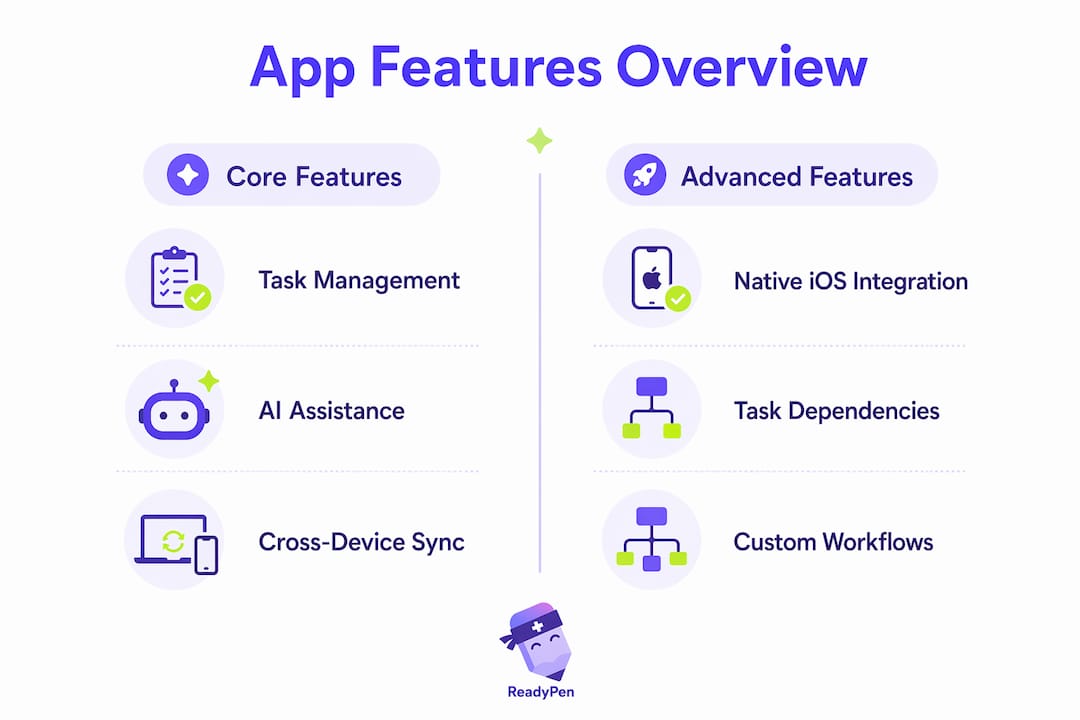
- iOS-native integration: Connect with Siri, widgets, lock screen notifications, and iCloud.
iOS-specific integrations separate good apps from great ones. Apple Reminders uses Apple Intelligence to categorize to-dos automatically, cutting manual sorting effort significantly. You can also set location-based reminders that trigger when you arrive at a specific place, which no calendar block can replicate.
AI-powered features are now standard in professional-grade apps. Natural language processing lets you type or say something like “email the proposal tomorrow morning” and have the app parse the date and priority automatically. That removes the friction of manual data entry, which is where most productivity systems break down.
Pricing follows a freemium pattern across the category. Basic task management is typically free, while advanced features like AI suggestions or cross-platform syncing cost $3–$10 per month, or a one-time fee of $20–$50. OmniFocus 4 offers a 14-day free trial so you can test the full feature set before committing.
Pro Tip: Before paying for any app, use its free trial to run your actual workflow for one full week. A tool that feels great in demos often fails in daily practice.
How do leading iOS productivity apps compare?
Choosing among the top apps for iPhone productivity comes down to three factors: feature depth, iOS integration, and how well the app matches your working style.
| App | Best for | Pricing model | Key strength |
|---|---|---|---|
| OmniFocus 4 | Power users, project managers | Freemium, $9.99/month or one-time | Task dependencies, cross-device sync |
| Apple Reminders | Casual users, Apple ecosystem fans | Free | Native iOS integration, Apple Intelligence |
| Todoist | Teams and individuals | Freemium, $4/month | Clean interface, cross-platform |
| 2Do | Methodology-driven users | One-time purchase | GTD support, flexible filtering |
| Lunatask | Focus and wellness-oriented users | Subscription | Mood tracking, distraction blocking |
Task dependencies deserve special attention. Apps like Stuff hide future tasks until their prerequisites are complete. That approach keeps your task list clean and prevents the cognitive overload that comes from seeing 40 items when only three are actually actionable right now.
Todoist and OmniFocus both support natural language input, but OmniFocus goes deeper with its review system and custom perspectives. Todoist wins on simplicity and cross-platform reach, making it the better pick if you work across iOS and Android devices in the same team.
Pro Tip: If you manage projects with sequential steps, choose an app with native task dependency support. Seeing only your next action reduces decision fatigue by a measurable amount.
What productivity methodologies work best with iOS apps?
The right methodology matters more than the right app. Switching tools every few weeks produces no lasting improvement. Committing to a system and using your app to support it does.
Three frameworks work well with iOS productivity tools:
- Getting Things Done (GTD): Capture everything into an inbox, process it into projects and next actions, and review weekly. Apps like 2Do and OmniFocus 4 are built around GTD principles, with inbox views, project hierarchies, and weekly review prompts.
- Eisenhower Matrix: Sort tasks by urgency and importance into four quadrants. Any app with custom labels or tags can replicate this. Todoist’s filter system handles it well.
- Pomodoro Technique: Work in focused 25-minute blocks, then take a short break. Lunatask includes a built-in Pomodoro timer, removing the need for a separate app.
Over-tooling is the most common mistake people make when building a productivity system. Productivity coaches consistently recommend starting with the simplest possible setup and adding complexity only when a clear need appears. A single app used consistently beats three apps used inconsistently every time.
The most suitable productivity app matches your cognitive workflow rather than chasing the most features. If you think in lists, use a list app. If you think in projects and timelines, use a project-oriented tool. Forcing yourself to use a methodology that conflicts with how your brain works creates friction, not focus.
How to maximize productivity using native iOS features
Native iOS integrations outperform third-party syncing in reliability and speed. iCloud, Siri shortcuts, and Action Button triggers give you fast, low-friction data capture that third-party cloud services cannot consistently match.
Here is a practical setup for maximizing your iOS productivity workflow:
- Set up Siri shortcuts for your most common task types. Saying “Hey Siri, add to my work inbox” takes two seconds and keeps your hands free.
- Add a task widget to your lock screen so your top three priorities are visible without unlocking your phone.
- Use the Action Button on iPhone 15 Pro and later to open your task capture screen instantly. One press, one tap, task captured.
- Enable cross-device sync through iCloud so tasks created on your iPhone appear immediately on your iPad and Mac.
- Link your productivity app to your calendar so time blocks and deadlines appear in one unified view.
| iOS feature | Best use case | Compatible apps |
|---|---|---|
| Siri shortcuts | Hands-free task capture | Reminders, OmniFocus 4, Todoist |
| Lock screen widgets | Quick priority review | Reminders, Todoist, 2Do |
| Action Button | Instant capture | OmniFocus 4, Reminders |
| iCloud sync | Cross-device consistency | Reminders, OmniFocus 4 |
| Focus modes | Context-based notifications | All major apps |
Focus modes are underused by most people. Setting a Work Focus that silences non-work app notifications while keeping your task app active creates a clean working environment without turning off your phone entirely.
Key takeaways
The most effective iOS productivity setup combines a single well-chosen app, a consistent methodology, and deep native iOS integration rather than stacking multiple tools.
| Point | Details |
|---|---|
| Define your needs first | Choose an app based on your workflow type, not feature count or popularity. |
| Use native iOS integration | Siri, widgets, and iCloud sync outperform third-party tools in speed and reliability. |
| Commit to one methodology | GTD, Eisenhower Matrix, or Pomodoro each work well when applied consistently. |
| Avoid over-tooling | Start with one simple app and add complexity only when a specific gap appears. |
| Leverage AI features | NLP task capture and AI suggestions reduce data entry friction and save real time. |
The app is not the system
I have tested more iOS productivity apps than I can count, and the pattern is always the same. People spend a weekend setting up the perfect system in a new app, feel productive for three days, then drift back to their old habits. The app gets the blame. The real problem is the absence of a committed methodology.
The apps that have stayed on my home screen longest are not the ones with the most features. They are the ones that got out of my way. Apple Reminders is not glamorous, but its lock screen widget and Siri integration mean I capture tasks in under five seconds. That speed matters more than any advanced feature I would use twice a month.
My honest advice: pick one app, pick one framework, and use both for 90 days before evaluating. You will learn more about your actual workflow in those 90 days than in any amount of app research. The setup process matters less than the daily habit of returning to your system and trusting it.
One area where even disciplined users fall short is meeting documentation. Tasks created in meetings get lost because capturing them mid-conversation breaks the flow. That gap is worth solving separately from your task app.
— Robbie
Readypen fills the gap your task app leaves open
Every iOS productivity setup has one weak point: meetings. You can have the best task app on your phone, but if action items from a 45-minute church staff meeting never make it into your system, the whole workflow breaks down. Readypen solves that specific problem. It automatically generates structured meeting notes and summaries from conversations or recordings, so nothing gets lost between the meeting room and your task list. Pastors, church admins, and ministry leaders use Readypen to capture decisions and next steps without stopping the conversation to type. If you want to know who benefits most from automated meeting documentation, the answer is anyone running more meetings than they have admin support to document.
FAQ
What is an iOS productivity app?
An iOS productivity app is a mobile application designed to help users manage tasks, notes, schedules, and workflows on Apple devices like iPhone and iPad. Core features include to-do lists, calendar scheduling, time tracking, and note-taking.
Which iOS productivity app is best for beginners?
Apple Reminders is the best starting point for beginners because it is free, built into iOS, and integrates directly with Siri and Apple Intelligence for automatic task categorization.
How do iOS productivity apps support GTD and other methodologies?
Apps like OmniFocus 4 and 2Do are built around GTD principles, offering inbox capture, project hierarchies, and weekly review features. Any app with tags or custom filters can support the Eisenhower Matrix.
Are iOS productivity apps worth paying for?
Professional-grade apps with AI suggestions and cross-platform sync typically cost $3–$10 per month. That cost is worth it if you use the advanced features consistently. Free apps like Apple Reminders cover most basic needs without any payment.
How do I improve productivity on iOS without switching apps constantly?
Commit to one app and one methodology for at least 90 days. Switching tools frequently resets your system and creates setup drag. Native iOS features like Siri shortcuts and lock screen widgets improve any app’s effectiveness without requiring a new tool.